Windows virtual machines ·
How to Share Files Between a Mac and a Windows VM in UVM
A document starts on your Mac, but the app you need to edit it runs inside Windows. Pick one Mac folder in UVM and open it from Windows as a network drive. Finder and File Explorer then give you two ways to access the same directory.
Make a folder just for exchanging files
Create a folder in Documents, such as Windows Share, and put a small test text file in it. The Windows guest can write to the shared folder, so keep the share limited to the files you want to exchange.
These steps use a Windows 11 VM in UVM with the Windows guest tools installed. The tools let Windows access the shared directory.
Choose the folder in UVM
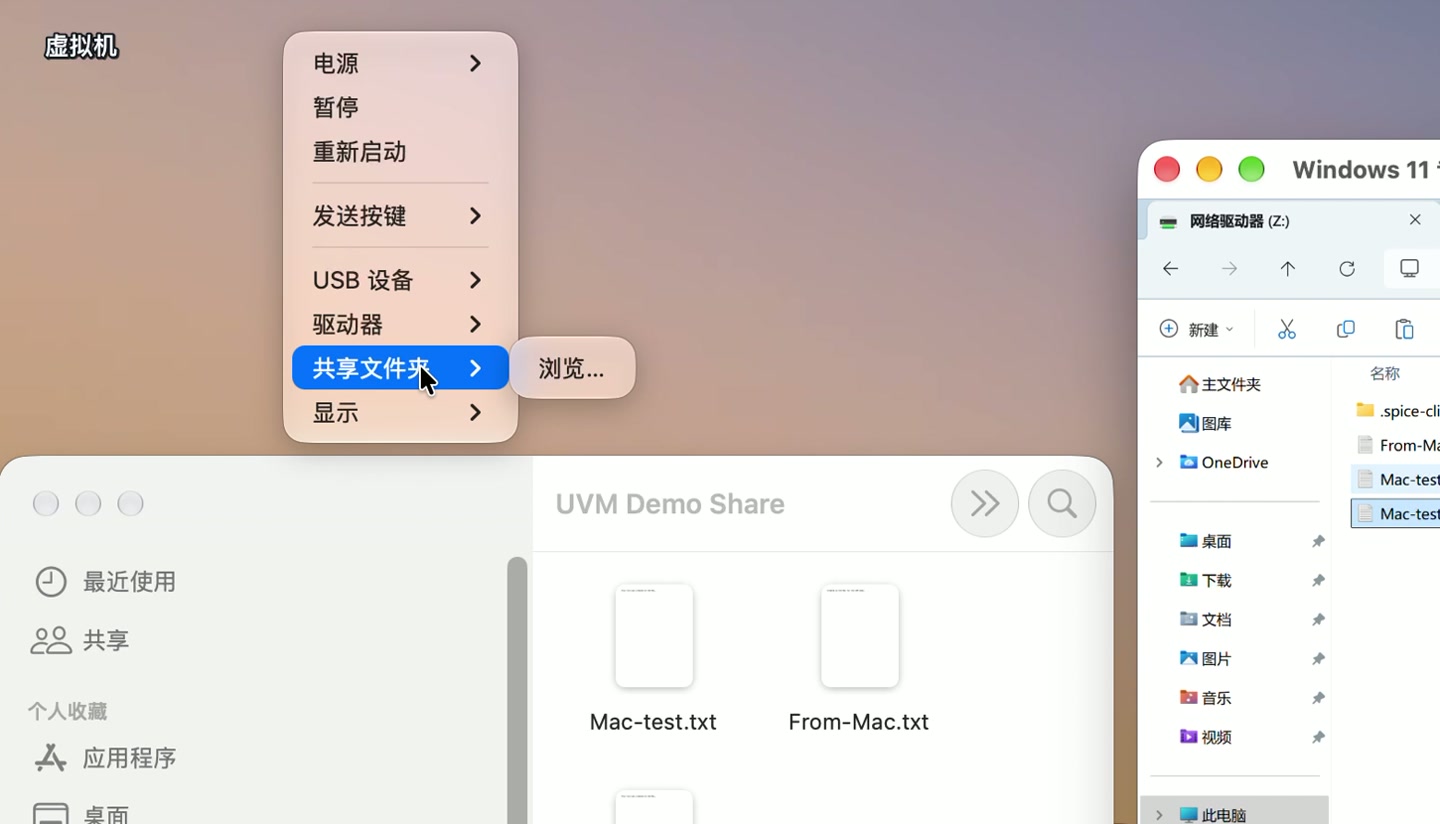
Start Windows and click its VM window so the macOS menu bar shows UVM's VM menu. Choose Virtual Machine → Shared Folder → Browse… (「虚拟机」→「共享文件夹」→「浏览…」 in the screenshots), select the Mac folder, and click Open.
Open the share from This PC
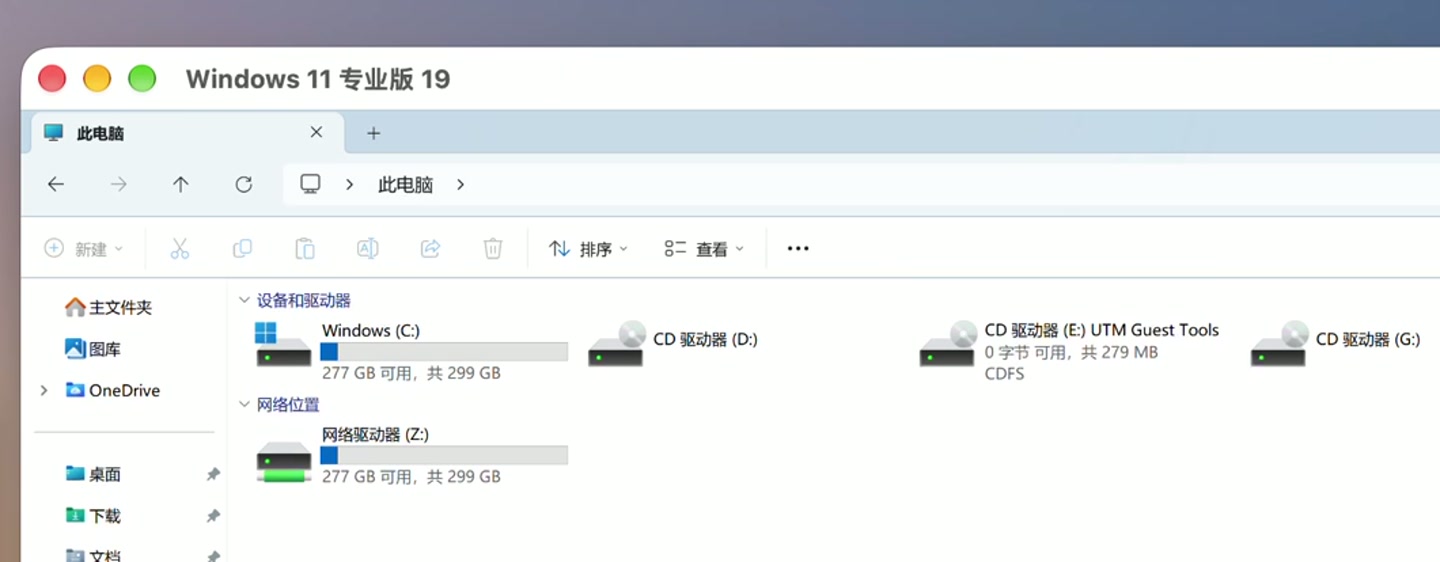
In Windows File Explorer, select This PC (「此电脑」) and look under Network locations (「网络位置」). In our test, the share appeared as Network Drive (Z:). Use the drive letter shown in your own VM. Open the drive and check that the test file from your Mac appears.
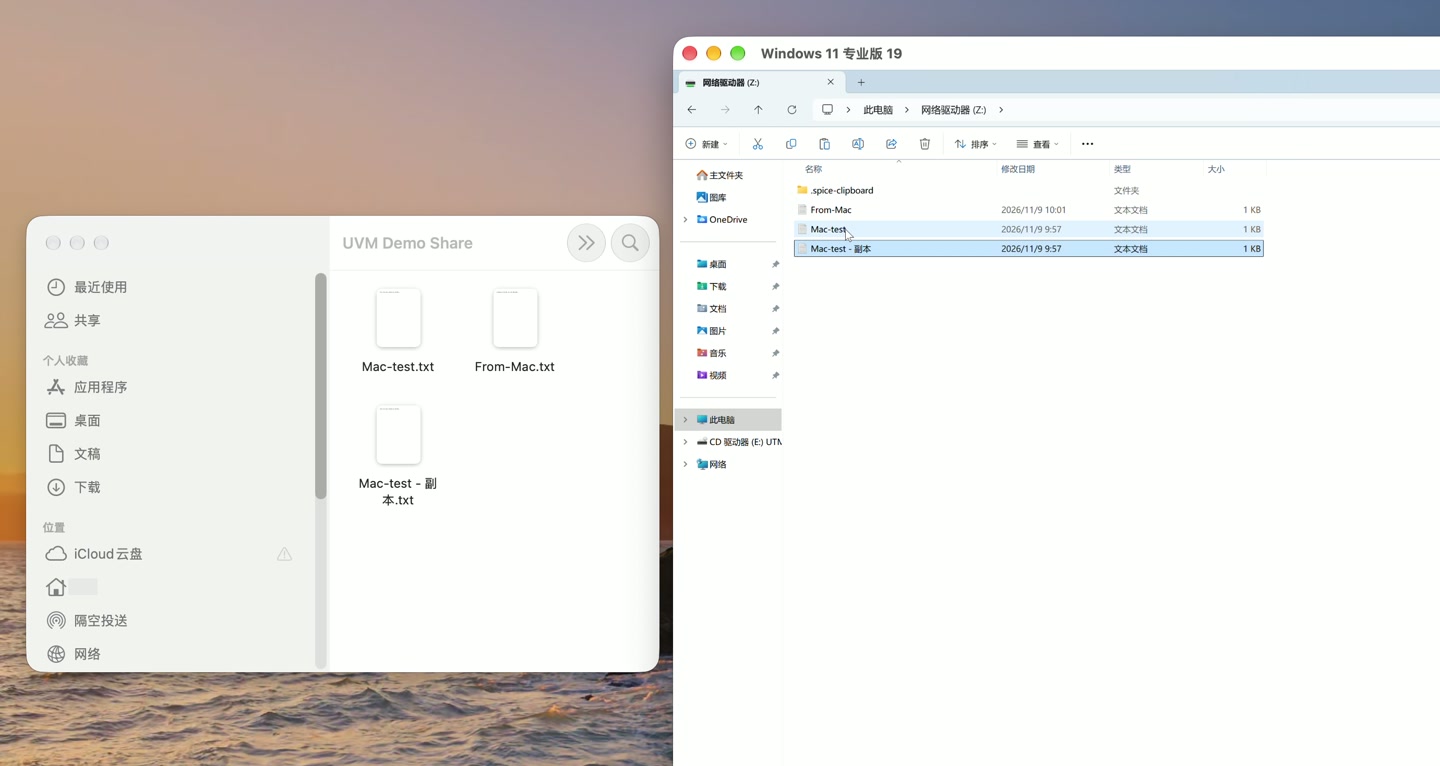
To test the trip back, duplicate the test file on the shared drive in Windows and open the same folder in Finder. In our test, the Windows-created copy appeared on the Mac and matched the original byte for byte. To bring a finished document back to your Mac, save it to the shared drive.
What to check if the drive or a file is missing
If the share doesn't appear under This PC, confirm that you selected a folder in UVM and finished installing the guest tools inside Windows. Attaching the guest tools disc only makes the installer available. You still need to run it inside the guest.
If the drive opens but a new file doesn't appear, press F5 in File Explorer. If it's still missing, compare the folder in Finder with the one selected in UVM. Test with an easy-to-recognize filename before moving your work files.
What is UVM, and where can I get it?
UVM is a virtual machine app for macOS that guides you through installing and running Windows 11 in a separate window on your Mac. You can keep using your Mac apps and exchange files with Windows through the shared folder.
On your Mac, open the Mac App Store and search for UVM.